 SnipArc
Screen capture, made for Windows
Capture a moment.Make your point.
Select, annotate, and copy. Turn what’s on your screen into something worth sharing—with pinned references, recording, and text extraction when you need them.
WindowsInstaller and portable editions
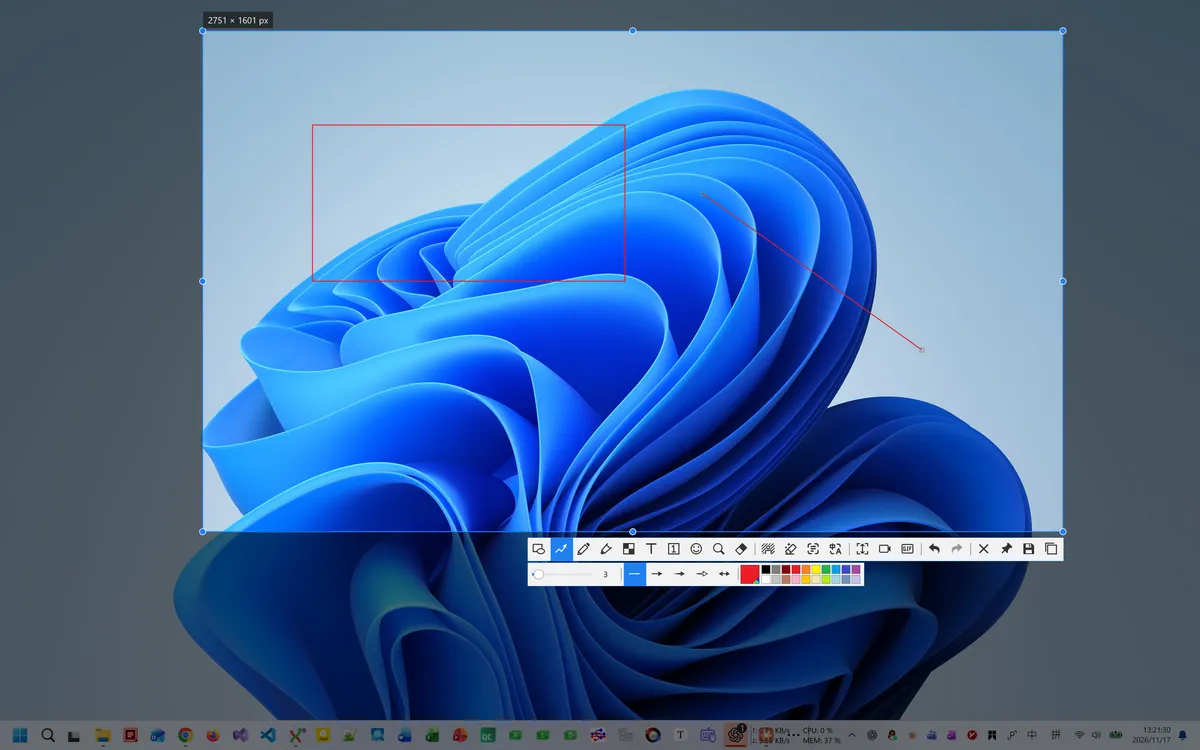
From a quick capture to a clearer conversation.
Explain an issue, keep a reference close, or show someone how it’s done.
Explain an issue
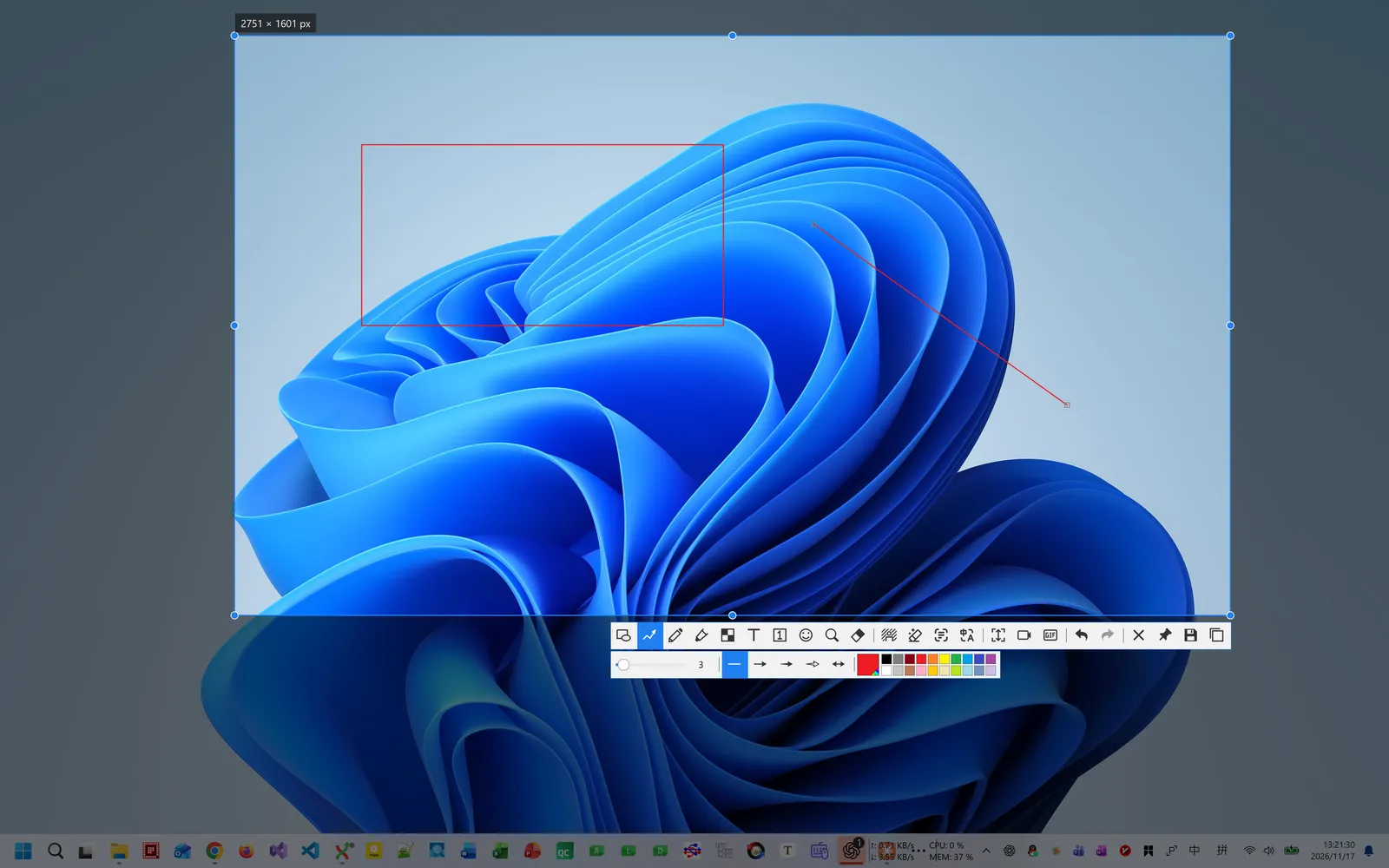
A marked-up screenshot gives the conversation a clear starting point.
- Capture the relevant area
- Mark the detail with an arrow or rectangle
- Copy it into a conversation or document
FOR: Bug reports and documentation
Keep a reference close
Keep the information you need beside the task you are working on.
- Capture a reference
- Pin it to your desktop
- Keep working with it in view
FOR: Reference material and design work
Show the steps
Use a recording when the sequence of actions tells the story.
- Choose the area to show
- Record the workflow
- Save in a format supported by your version
FOR: Walkthroughs and reproducing issues
Capture it. Mark it. Share it.
Point to the detail with rectangles and arrows. Make feedback and instructions easier to follow.
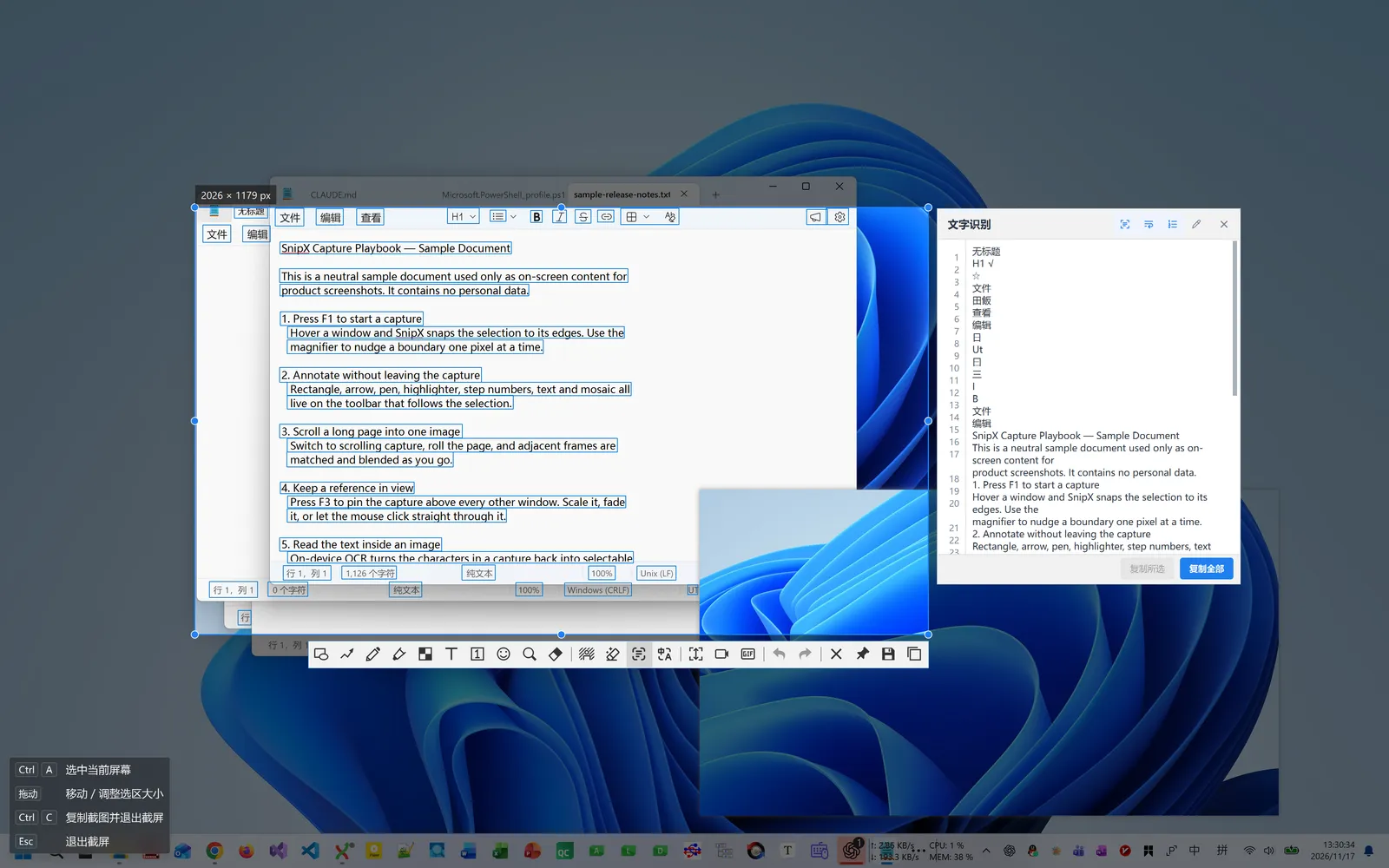
Take the words out of the image.
Recognize text in a selected region, review the result, and copy it into your next task.
GOOD TO KNOW
A few things before you download
From choosing a package to taking your first screenshot.
Contact and feedbackWhich Windows download should I choose?
For everyday use, choose an installer offered on the release page. Prefer to extract and run the app? Choose a portable package. Available formats and system requirements are listed with each release.
How do I take my first screenshot?
Run SnipArc and press F1, the default capture shortcut. Select a region, then annotate, copy, or save from the toolbar. If you changed the shortcut, check the app’s settings.
Do basic screenshots need an internet connection?
Capture, annotation, and copying use local functionality. Text extraction requires the corresponding local recognition resources. Image translation may connect to a service, depending on your selected provider; check the service settings before use.
What is the difference between installer and portable?
An installer sets up the app through a wizard. A portable package is extracted before running SnipX.exe. These are distribution formats, rather than a statement about features or licensing.
What should I include in a bug report?
Include your SnipArc version, Windows version, and steps to reproduce the problem. A screenshot can help, but check it for personal information before sharing.
YOUR NEXT SCREENSHOT
Make your next screenshot count.
Choose the Windows edition that fits your workflow.
Prefer no installation? Choose the portable edition.